We're here to help
- Click"Advanced"
- Click"Booking"
- Click"Continue" after selecting the dining date and time
- Click"Search Now" after adding the criteria if needed
- The restaurants which fit with your searching criteria are shown form the list


- Click the search bar
- Click"Advanced Search"
- Click"Search Now" after adding the criteria if needed
- The restaurants which fit with your searching criteria are shown form the list


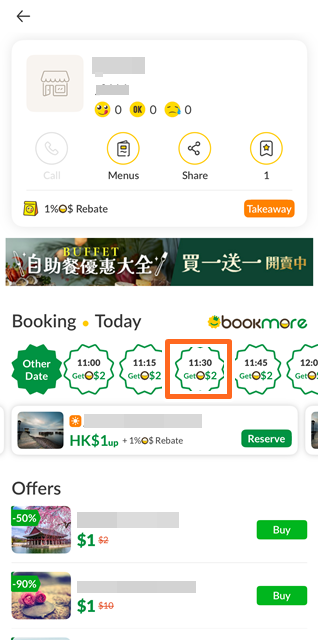
- Please select restaurant and time slot for booking
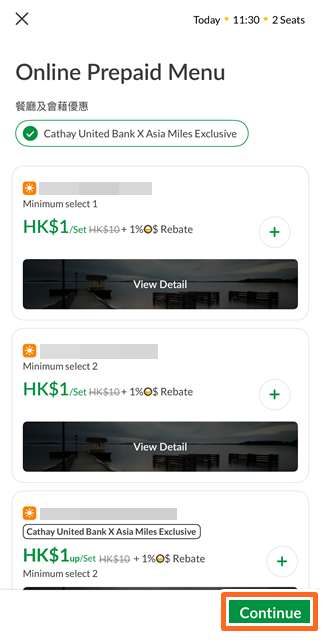
- Select the prepaid offer if needed and then click"Continue"
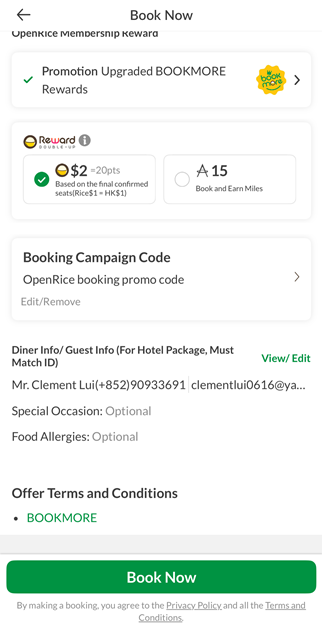
- Insert the booking information and select the reward offer and click "Book Now" afterward
- The booking has been made successfully


- Please select restaurant and time slot for booking
- Select the prepaid offer if needed and then click"Continue"
- Insert the booking information and select the reward offer and click "Book Now" afterward
- The booking has been made successfully


How to make booking with prepaid menu?(Desktop)
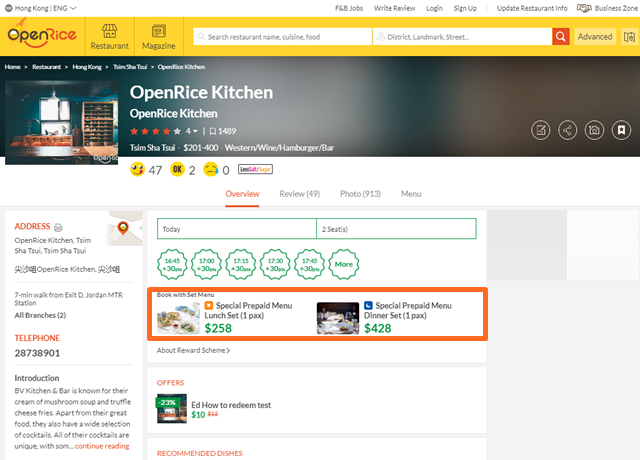
- Select your prepaid menu
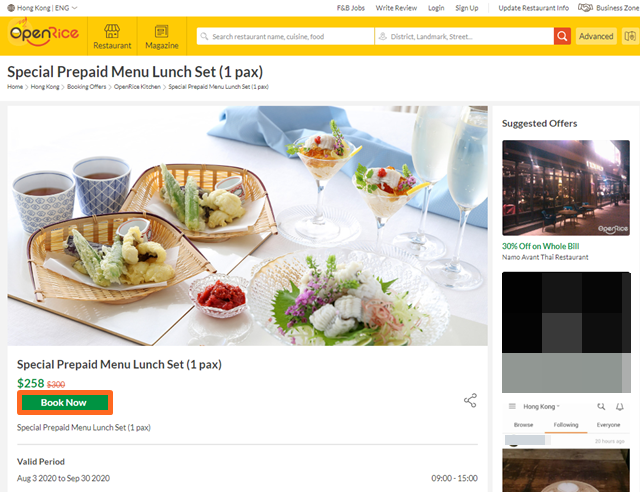
- Click “Book Now”
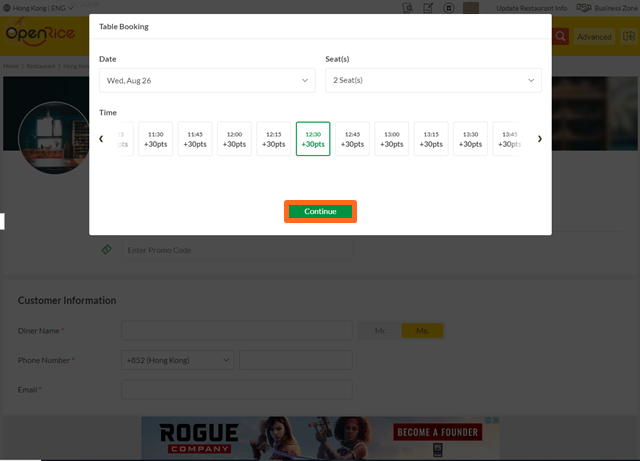
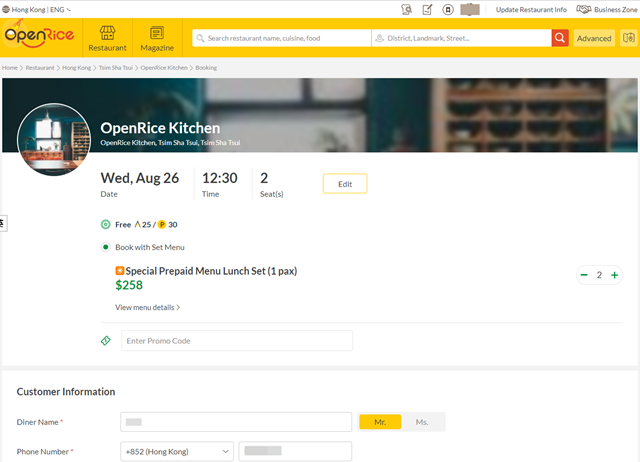
- Select your dining date, time, and number of seats and then click"Continue"
- Check your selected dining date, time, and number of seats
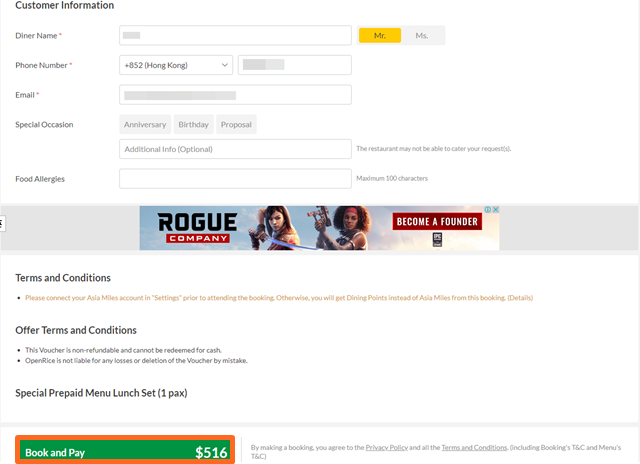
- Input the customer information and then click“Book and Pay”
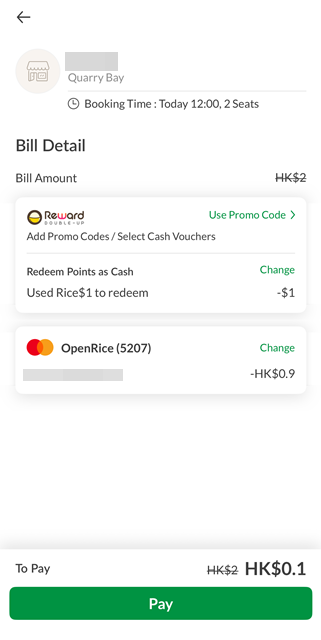
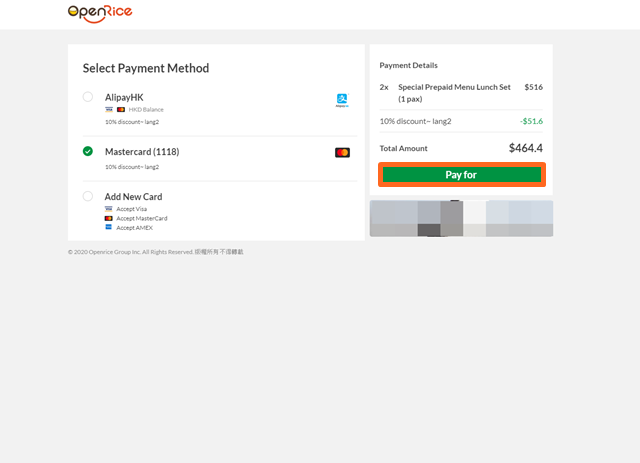
- Select your payment method and click“Pay for”
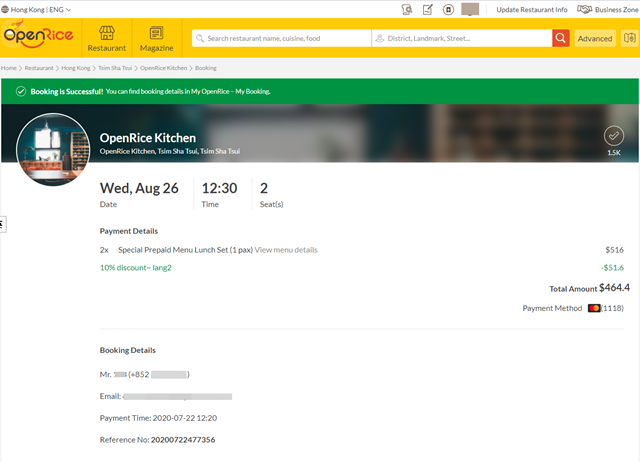
- Confirmation page will be shown after successful payment
How to make booking with prepaid menu? (APP)
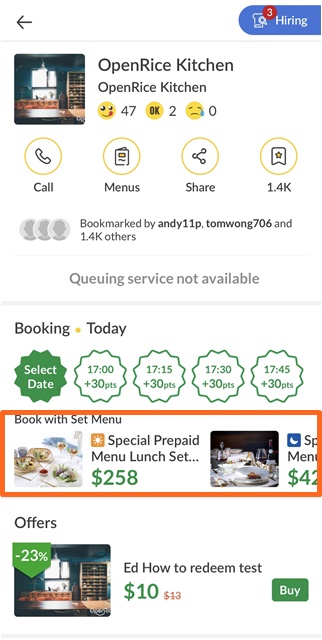
- Select your prepaid menu
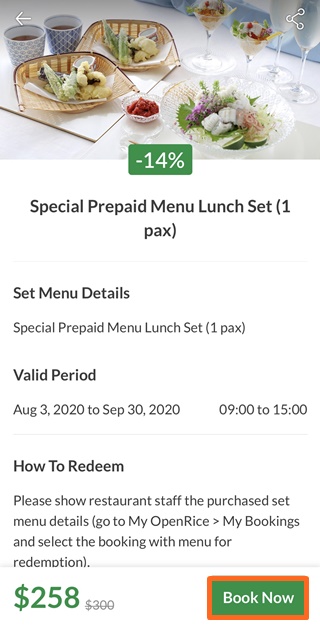
- Click “Book Now”
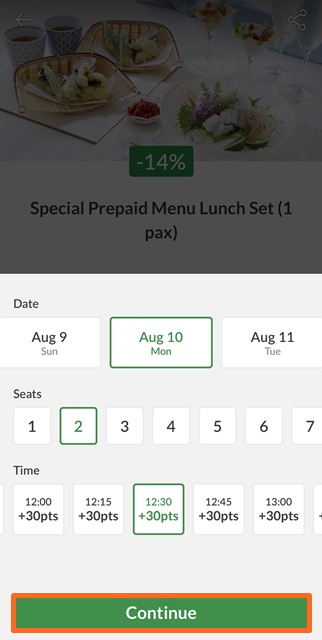
- Select your dining date, time, and number of seats and then click"Continue"
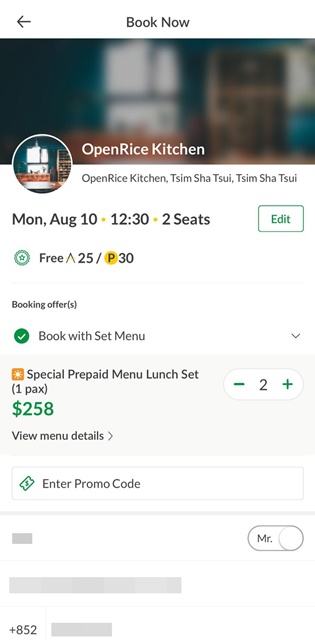
- Check your selected dining date, time, and number of seats
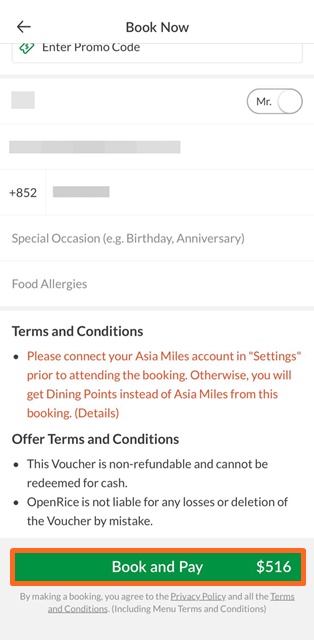
- Input the customer information and then click“Book and Pay”
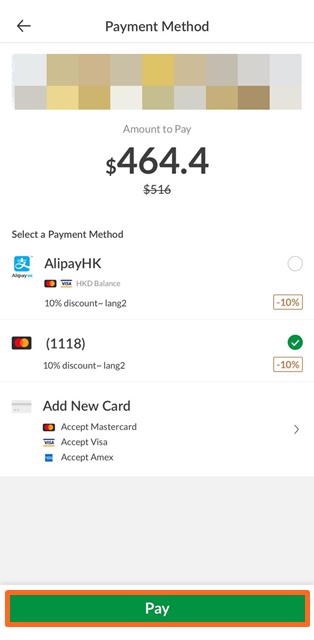
- Select your payment method and click“Pay”
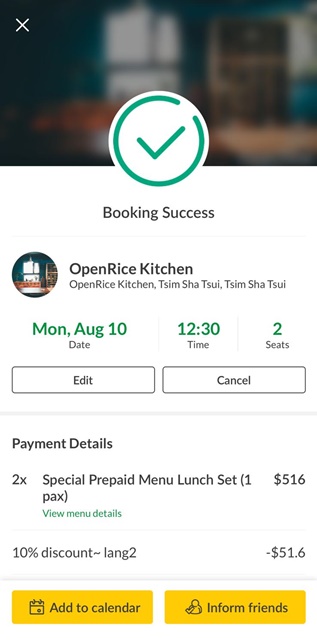
- Confirmation page will be shown after successful payment
- Move to the profile icon and click"My Bookings"
- Click the booking that would like to be cancelled
- Click "Cancel"
- Click "Yes"
- The booking is cancelled


- Click"Me"
- Click "Bookings"
- Click the booking that would like to be cancelled
- Click "Cancel"
- Click "Yes"
- The booking is cancelled


Booking Offer
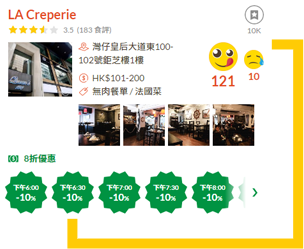
Some restaurants provide Special Booking Offer, such as free dish, discount off etc
Booking Points to Redeem Gifts
Log in to book and attend specific restaurants will earn you 30 booking points. Different gifts can be redeemed with your points.

Last-Minute Offer
There will be some Last-minute offers from restaurants. Hot deals you shall not miss!

Retention Offer
Some restaurants you have booked and attended before may provide retention offer, so you can enjoy again!

Booking Offer
Some restaurants provide Special Booking Offer, such as free dish, discount off etc

Booking Points to Redeem Gifts
Log in to book and attend specific restaurants will earn you 30 booking points. Different gifts can be redeemed with your points.
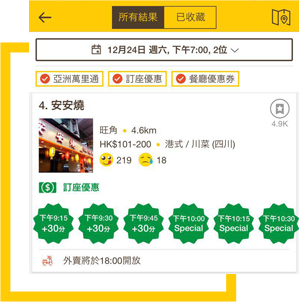
Last-Minute Offer
There will be some Last-minute offers from restaurants. Hot deals you shall not miss!

Retention Offer
Some restaurants you have booked and attended before may provide retention offer, so you can enjoy again!

- Please select restaurant and time slot for booking
- Inert the promo code and click"Apply"
- The promo code has been applied on the order instantly


- Please select restaurant and time slot for booking
- Click"Enter Booking Campaign Code"
- Inert the promo code and click"Apply"
- The promo code has been applied on the order instantly


* Please update OpenRice App version to 5.13.0 or above
- Selecting the dinning date, time and number of dining people
- Select the prepaid menu if needed
- After selecting the booking reward or any booking offer and click "Book Now" afterward
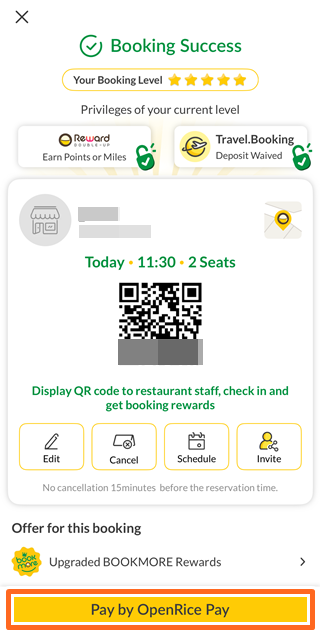
- Booking success. Click"Pay with OpenRice Pay"When you take the check
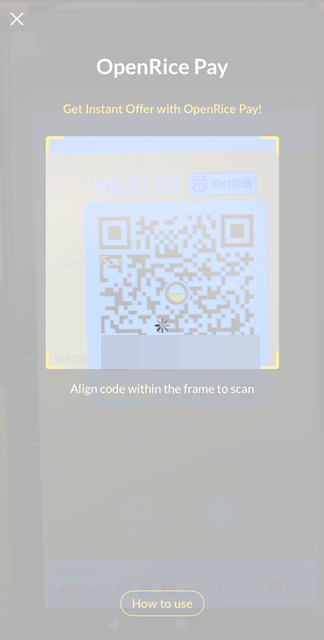
- Put you phone onto the QR Scanner, align code within frame to scan automatically
- Select the Rice dollar redeem acmount if needed and click "Continue"
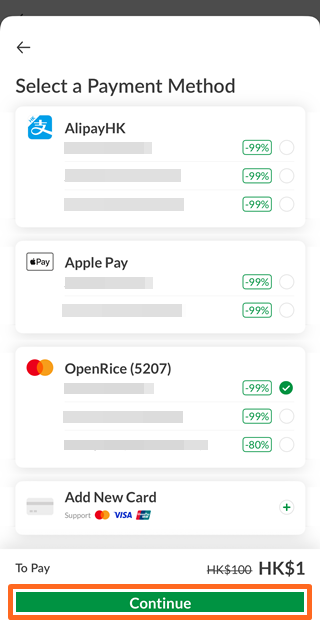
- Select the payment method and click "Continue"
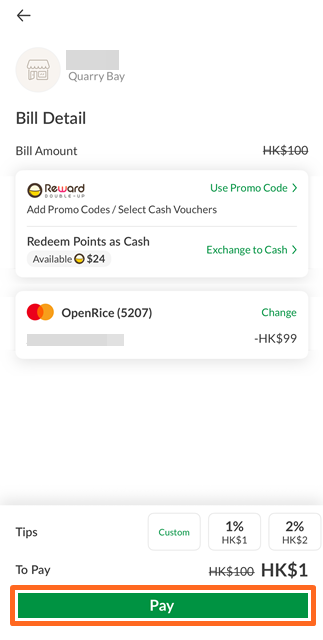
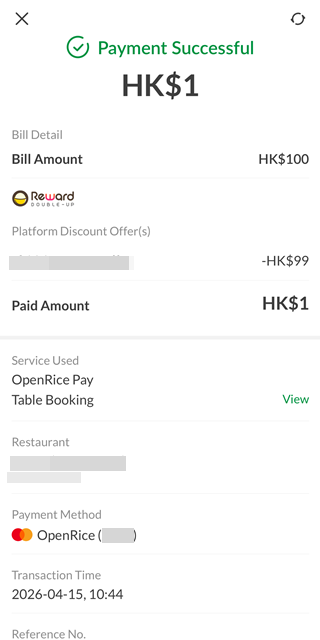
- Check for the amount to pay and click "Pay"afterward
- Payment successful


How to use Rice Dollars for prepaid menu?
*Please update OpenRice APP to 6.0 or above
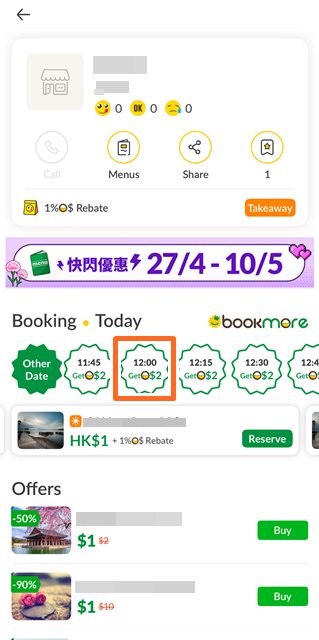
- Selecting the dinning date, time and number of dining people
- Select the prepaid menu and click "Continue & Pay"
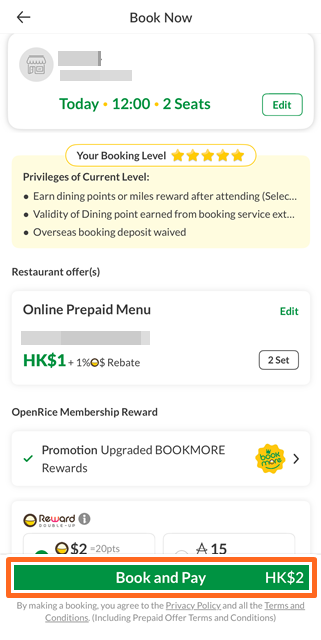
- After selecting the booking reward or insert any booking offer and click "Book and Pay" afterward
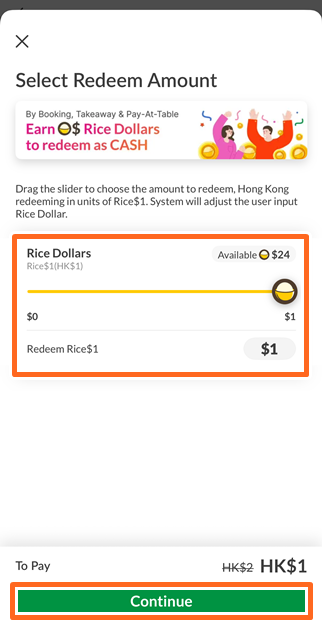
- Select the Rice dollar redeem acmount and click "Continue"
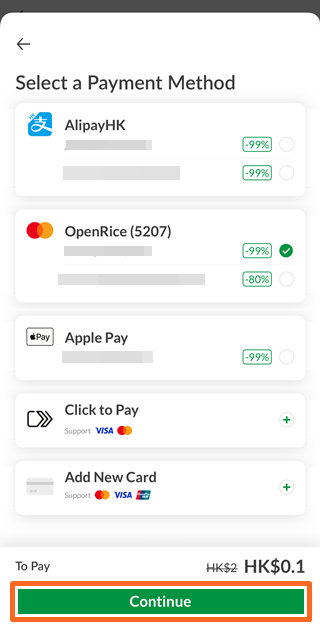
- Select the payment method and click "Continue"
- The final pay amount is shown from the page