We're here to help
Account
How to use check my OpenRice points or Rice Dollars?
How to check my OpenRice points or Rice Dollars?
*Please update OpenRice APP to 6.0 or above
- Check at main page under "My Points"
- OR go "ME"
- You can check your account OpenRice Points or Rice Dollars


Member registration
- Click"Login/Sign up"
- Click"Sign up now!"
- OpenRice account can be sign up by using phone number, email address, Google account or Facebook account


- Click"Login/Sign up"
- Click"Register Now"to register by using phone number or email address. Besides, OpenRice account can be connected with social media account


How can I go to “My OpenRice”?
- Move to profile icon
- Click the username
- Go to "My OpenRice"successfully


- Click"Me"
- Go to "My OpenRice"successfully


Update profile picture or cover photo
- Move to profile icon
- Click Personal Setting
- Click the icon so as to change the profile icon


- Click"Me"
- Click the icon so as to change the profile icon


Update username
Update the option of receiving electronic messages
- Move to profile icon
- Click"Personal Settings"
- Click"Personal Setting"
- Change the setting of receiving promotional message


Update email address
- Move to profile icon
- Click"Personal Settings"
- Click"The Pencil icon"next to the email address column
- Enter the email address and click "Submit"


Change password
- Move to profile icon
- Click"Personal Settings"
- Click"Change"nest to the change password column
- Insert the current password and the new password, then click "Submit"


Forget your password
Remove account
Remove Credit Card
* Please update OpenRice App version to 5.10.0 or above
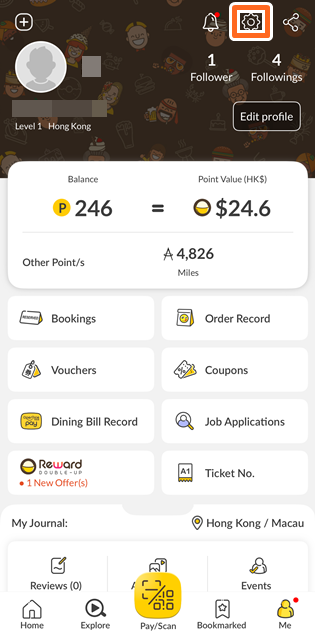
- Go to “Me”
- Choose"Setting"
- Click "Credit Card"
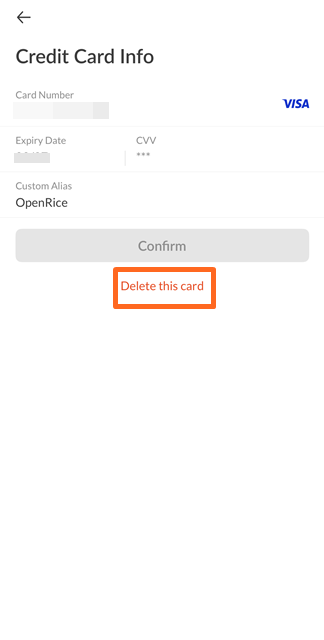
- Choose the Credit Card to be removed
- Click“Delete this card”
- Click"Delete"
- The credit card has been removed





Binding Credit Card
Binding Credit Card
* Please update OpenRice App version to 5.10.0 or above
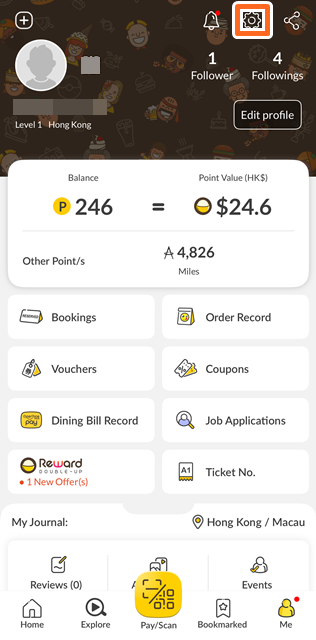
- Click"Me"
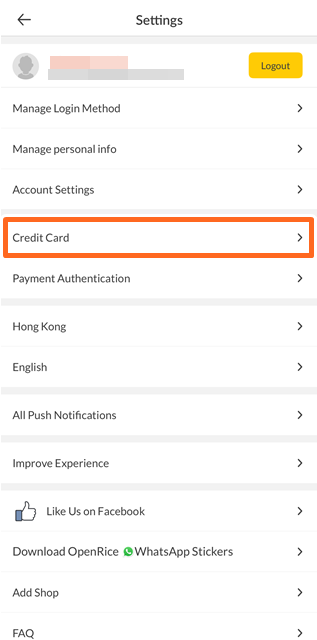
- Click"Setting"
- Click"Credit Card"
- Click"Add New Card"
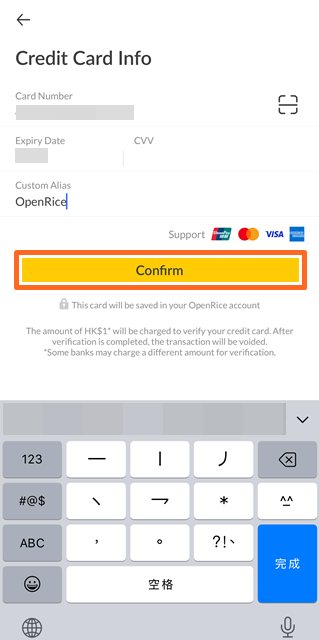
- Input the credit card information and click "Confirm"
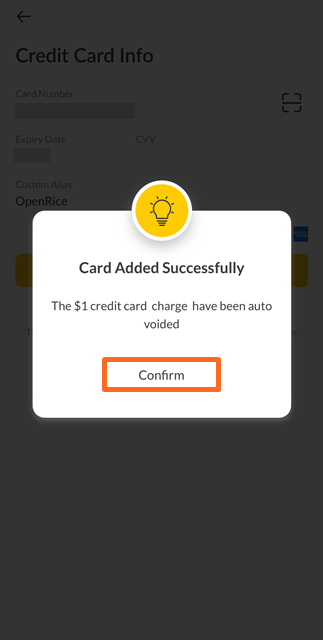
- Click "Confirm"
- The credit card has been bound successfully